
Documentation
Ishmael’s Manual
Distraction free writing
Part One
Indulgences
1
Introduction
Call me Will. I am the creator of Ishmael, and I would like to talk to you about writing. Not the art of writing, you understand—I have nothing to say about sentence structure, metaphors, or plotting. Nor have I any advice to give on writing fiction whatsoever. I will leave that to the professionals. What I want to talk about is how Ishmael can help you get the words out of your head and onto a page or screen.
The first word processor for the digital age was developed more than five decades ago. A technology perfected—surely? I would disagree. I’d go as far to say that today’s word processing software can actively work against you.
Countless novels, novellas, short stories, and screenplays have been produced on computers far less powerful that the device you are using right now. Were those writers held back by the technology of their day? I would say, yes. Clearly not enough to prevent them from creating great works. But some of their success is despite their tools, and not because of them.
Often this is a result of legacy. Compromises made for the technology of the day can hang around like vestigial organs long after advances make them redundant. Case in point: the qwerty keyboard. The standard keyboard in the English speaking word has keys arranged such that letters commonly seen together in prose are physically further apart on the keyboard—not closer as you might expect. Consequently your fingers need to travel further and typing is slower. There are alternative keyboard layouts designed to maximize typing speed, but few have the time to retrain years of muscle memory to become proficient in them. The rest of use a keyboard layout chosen to allow enough time for the mechanical arms on a classic typewriter to return to their starting position. If you pressed two keys physically close together on those wonderful machines, the arms had a tendency to jam. So they designed a keyboard layout to move commonly clustered letters physically further apart. We’ve been using that layout ever since simply because each evolutionary step from typewriter to computer preserved the keyboard layout to avoid inconveniencing their customers.
Legacy also explains much of why modern word processor software fails writers; features are designed not in the way they ought to be designed, but according to past decisions long overdue for a fresh perspective.
Fortunately software is more malleable than keyboards.
Ishmael has the luxury of having little legacy to adhere to, and absolutely will reconsider and redesign standard features found in other software—if improvements can be made. Not everything needs to change. If it works it works. But when something is done differently, there is good reason.
Read on if you want to master Ishmael and unlock its productivity benefits. But I absolutely will forgive you if you want to dive straight in and start writing. The tips feature will introduce you to Ishmael’s basic features, and be sure to look through the menus to see what else it can do.
2
The Flow State
Writers—and many other creatives—will recognize the flow state. Sometimes referred to as “being in the zone”, it is a state of effortless focus. Being in the flow state is not a prerequisite for working, but it is when your best work happens.
For a lucky few getting into a flow state as easy as sitting down at their desk. For most of us it can be hard to achieve and all too fleeting once it arrives.
The enemy of the flow state is distraction: a doorbell, a noisy child, a text from your neighbor. Each with the potential to snap you out of your flow state or prevent you from getting there entirely. And yet the very software most people use for writing is crammed full of distractions. Take Microsoft Word. Rows of buttons and icons, toolbars, annotations, popups, all clamoring for your attention. It is the noisy child of software.
Word is not the only offender. Most professional word processing software is like this because writing is a secondary concern of word processing at best. Word’s primary purpose is page design; taking text and images, and arranging them on the printed page. As a writer you are not designing a flier or a document. How the pages will look is immaterial while you are still writing.
This is why Ishmael is different. Ishmael’s primary concern is helping you write. It’s features don’t always have an analog on the printed page. Like focus mode, which highlights the sentence your are editing and the paragraph it resides in. And typewriter mode—a wonderful nod to the technology of old—that keeps the sentence you are working on centered in the screen with exactly half a screen of text below the cursor and half a screen of text above the cursor. Features like these improve writing experience and don’t prematurely burden you with design.
Ishmael’s user interface is lean. Almost bare in comparison to other apps. Anything on screen other than your writing has had to justify its existence. Many icons and buttons did not make the cut. The end result is that there is precious little to distract you from your work.
There are plenty of features, but they remain hidden until you need them. And when you really want to lose yourself in the text, you can go in to zen mode which replaces the entire screen with just the text you are working on—not even a menu to distract you.
When you are ready for your words to shared, Ishmael can produce standard file types for immediate publishing or for sending to your editor. No design required. Just your words laid out in the way your readers or publisher expects.
You may never need to open Word again.
Part Two
The Real Manual
3
How to Use this Manual
Before we get to the meat of the manual, let me first introduce some conventions.
Menu Items
Menu items are shown with a right arrow (→) and in bold. For instance File→Save means click the File menu then select the Save option. If the name of the option ends in an ellipsis, then that means Ishmael will open a dialog. For instance Book→Cover… tells you that clicking Cover in the Book menu opens a new dialog.
Keys
Keys are shown in a style that visually resembles a key. For instance: A Space ↵. Some keys are shown with symbols for modifier keys which require you to press the key and modifier together. For instance, ⇧A means press shift and A together; ⌘B means press command and B together.
Modifiers
Here are the modifier symbols you can expect to see:
⇧ Shift key
⌃ Control key
⌥ Option key
⌘ Command key
Note that the modifier symbols are the same as those shown the standard Mac keyboard.
You will also encounter keys with multiple modifiers. For instance ⇧⌘↵, which requires that you press all three keys together: shift, command, and enter.
Shortcuts
Most menu options also have an associated shortcut key, which is often displayed next to the option in the manual. For instance File→Save ⌘S tells you that you can select the Save option from the File menu or press the shortcut key.
4
Getting Started
When you first launch Ishmael, you should see a New Book button. Click this button and Ishmael will drop you straight into a new book. You can also create a new book from the menu by clicking File → New Book.
You should see a relatively blank page with a prompt for a title. Give your chapter a title and hit ↵. Don’t have a chapter title? No problem, call it “Untitled”—you can edit that later.
At this point it would be wise to save your book, which you can do via File→Save ⌘S. Where you want to save your book is up to you, but if you have any cloud services such as iCloud or Dropbox, you can save the book in the appropriate folder to benefit from cloud backups.
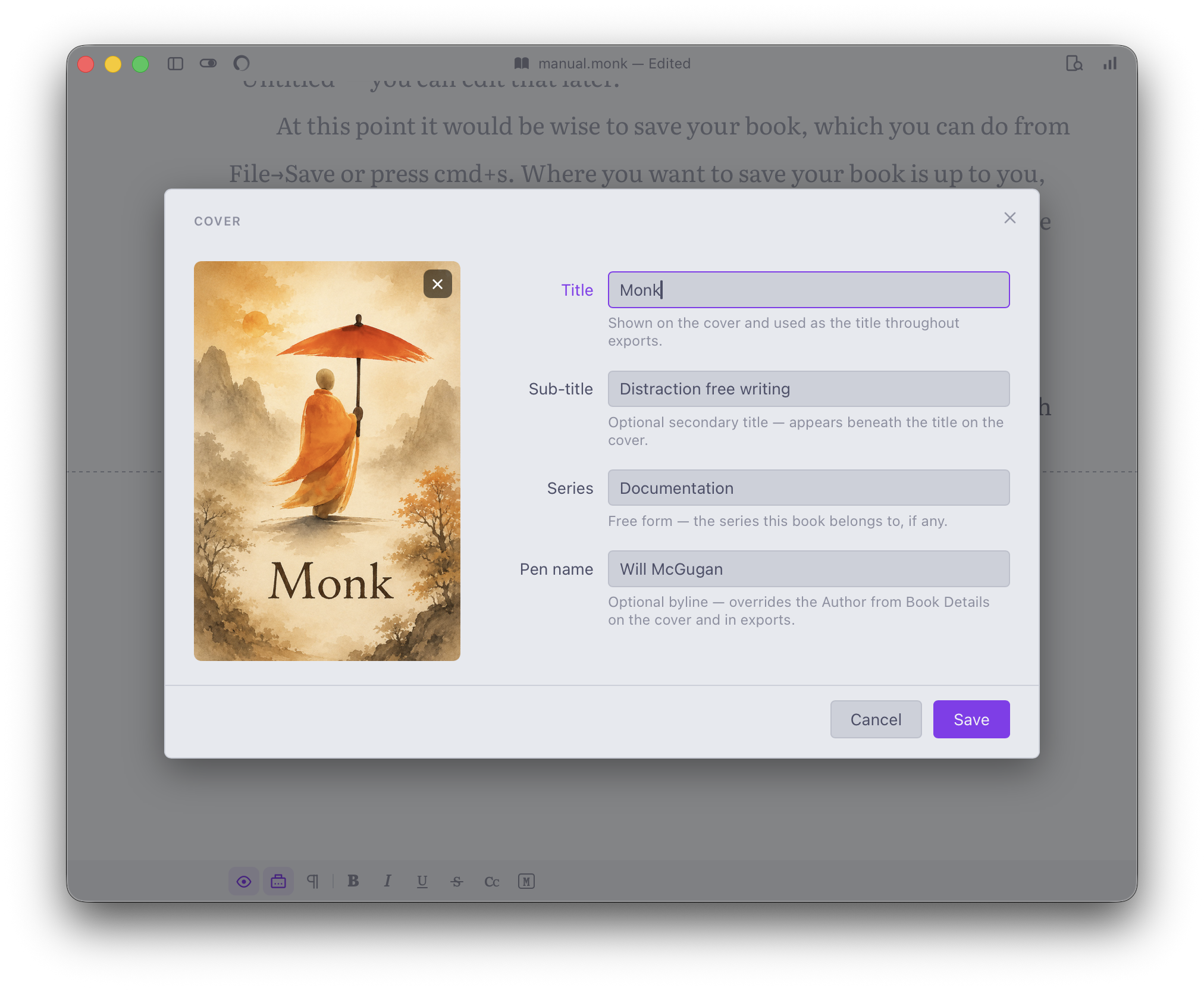
Before you start writing, take a moment to look at the cover dialog, which you can access via Book→Cover…
From here you can give your book a title, sub-title, series name, and your pen name. This information is required when you export or publish your book. If you have a cover image (used when exporting e-books) you can set it here. You can leave these fields blank until you know them, or fill in placeholders if you like.
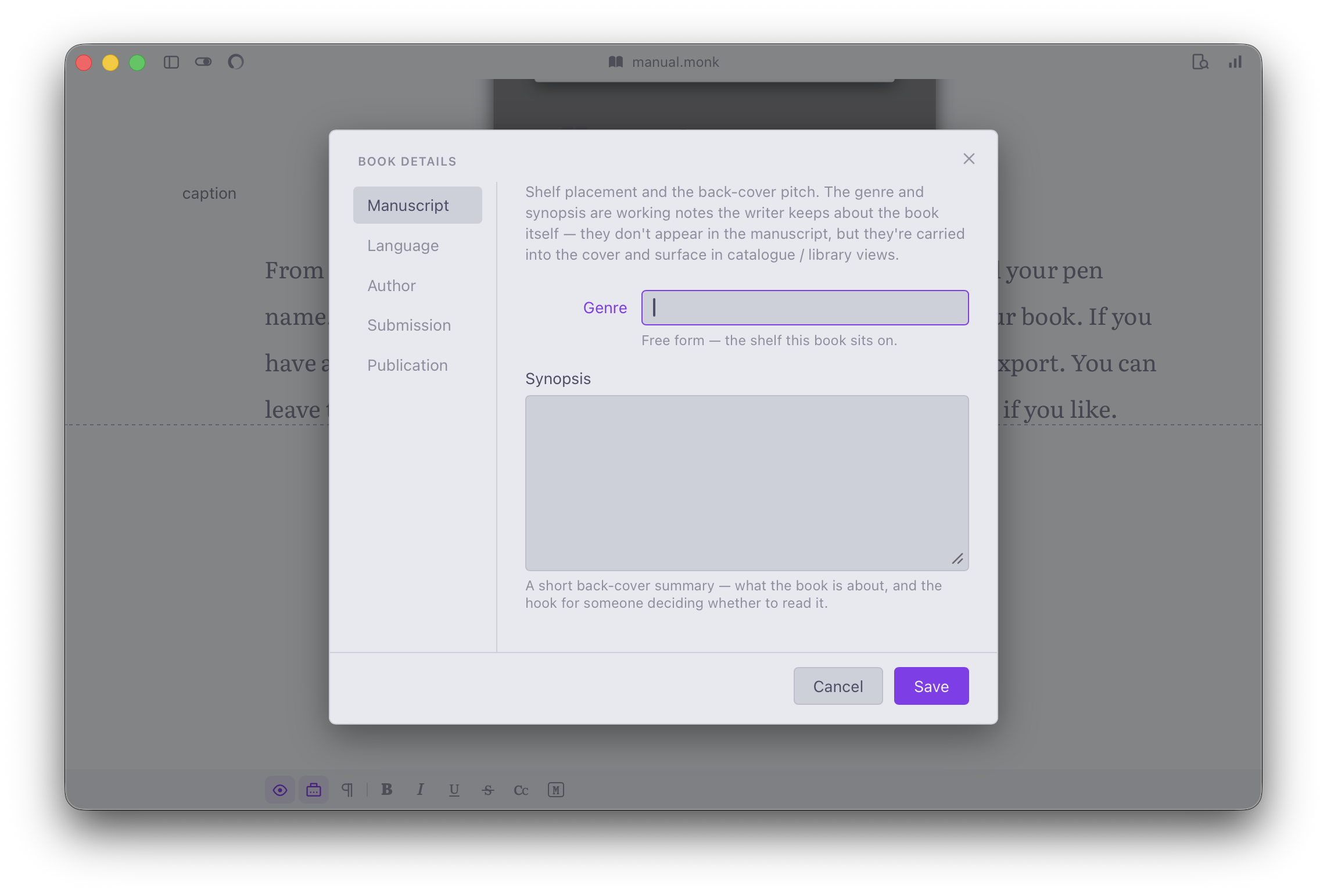
Also found in the Book menu is the Details dialog (Book→Details…) where you can set additional fields used in export. You can leave these fields blank until you know them.
5
Importing
If you have existing content you would like to edit in Ishmael you can import it with File→Import….
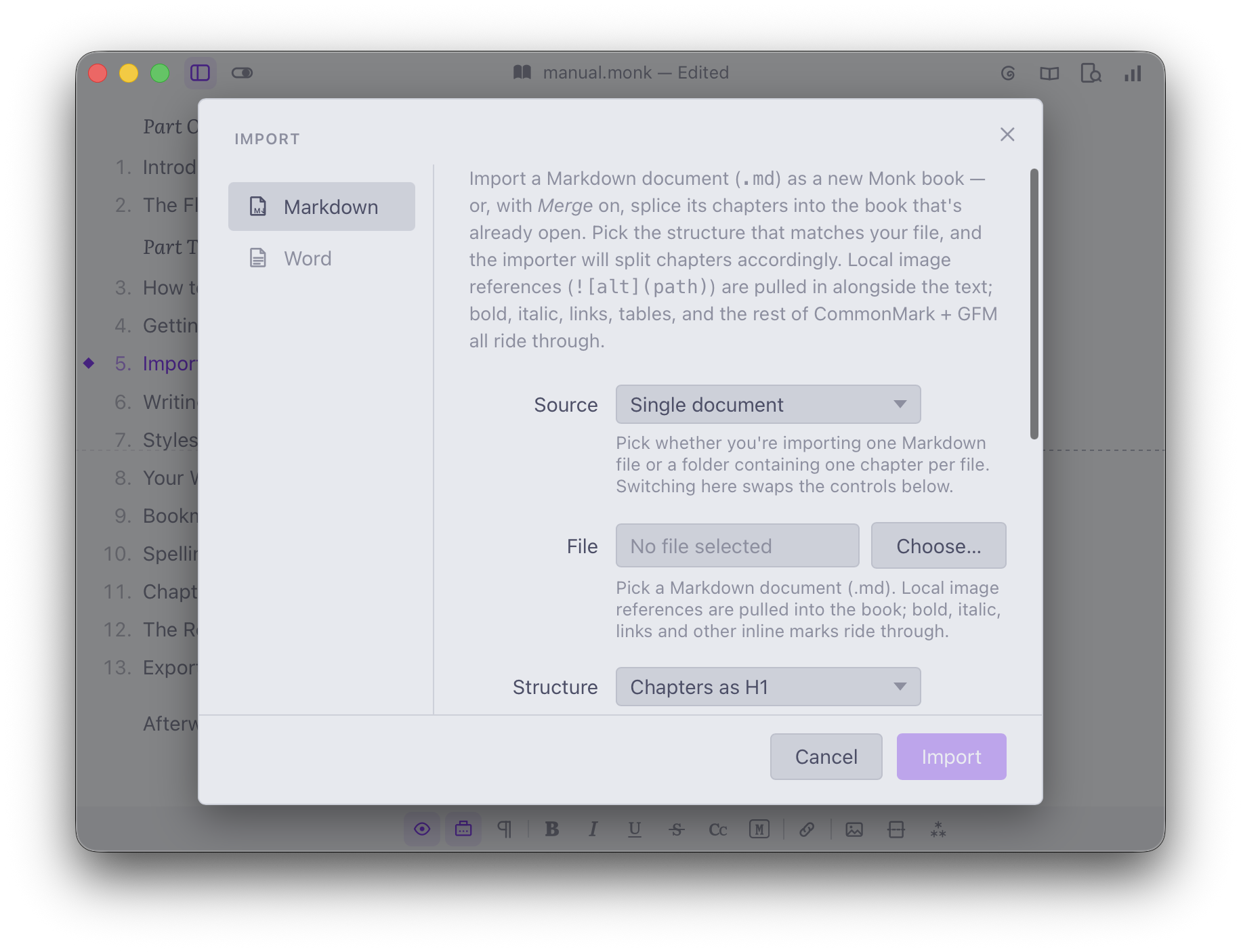
Select the format you would like to import from the tabs on the left. Currently Markdown and Word is supported. There is no standard for storing entire novels in these formats, so you may have to tune the settings so that Ishmael knows how to create new chapters etc. You can also chose to merge the imported text or to create a new book file.
Once you have filled in the format options, click the Import button to perform the import.
Pasting to Import
If the import dialog doesn’t explicitly support the format you wish to import then you can still move text from one application to another with copy and paste.
In your editor select your text and copy with ⌘C. Then in Ishmael create a new chapter and press ⌘V to paste.
6
Writing & Editing
Writing in Ishmael will feel familiar.
It should come as no surprise that if you hit keys they will appear at the cursor, ⌫ deletes a character, and ▲ ▼ ◀ ▶ or clicking the text moves the cursor.
You can get quite far with just those basic interactions, but there are other keys and key combinations to make writing and editing feel more fluid and natural
Hands on the Keyboard
One of the goals of many of Ishmael’s features is to keep your hands on the keyboard as much as possible. Switching to the mouse or trackpad can slow you down because it require you to physically move your hands away from where you input text. But also because moving a pointer across the screen requires spatial and not verbal reasoning. This switching of mental modes has the potential to snap you out of a flow state.
Keeping your hands on the keyboard requires committing a few key combinations to memory. You probably know one or two already, like ⌘S to save. Add a handful more to your repertoire and you will be able to edit and write faster.
Keep pointer (catch all term for mouse and trackpad) interactions for infrequently accessed items. If you only need it once or twice a session, then committing it to memory seems a pointless exercise. If you use an action constantly, then doing it from the keyboard is an easy productivity unlock.
I have found the best way to learn these key combinations is to look for what you wish to do in the menus or icons, but then press the key combination rather than clicking the option or icon. In the case of menus, the key is shown next to the item. For icons, hover over the icon to see a tooltip with the key. Once you have done this a few times you will find yourself instinctively reaching for the keys.
Scenes
A scene in Ishmael is chapter text separated by a scene break. Without a scene break, the entire chapter is considered a scene.
A scene typically indicates the passing of time, or change in character viewpoint. It suggests to the reader that something in the story as ended and a new part of the story has begun, but with a lesser importance than a new chapter. Contemporary novels display a scene break as three centered asterisks.
You can create a new scene in Ishmael by writing three asterisks (***) on a blank line. Or via Insert→Scene Break ⌥↵.
Paragraphs
Creating paragraphs seems almost too trivial to mention—↵ creates a new paragraph, right? But it is only this simple if you happen to be at the bottom of the text. If your cursor is not at the end of a sentence then pressing ↵ would break the sentence in two, leaving a sentence fragment on both the current paragraph and the newly created paragraph.
More often than not, creating new paragraphs require you to machine gun the cursor keys to navigate to the end of a sentence, hit ↵, and possibly delete a space. And if you want a new empty paragraph rather than simply breaking the current paragraph into two, you still need to hit ↵ followed by ▲. This works in Ishmael as well, and I suggest you give it a try. If only to note how awkward an interaction it is.
This entire operation in Ishmael can be replaced by the following actions:
Insert → Paragraph Above ⇧⌘↵ Insert a fresh blank paragraph immediately before the current sentence.
Insert → Paragraph Below ⌘↵ Insert a fresh blank paragraph immediately after the current sentence.
There are similar operations to break the current paragraph at the sentence boundary without creating a blank paragraph.
Insert→Break Paragraph Above ⇧⌃↵ Break the current paragraph into two, from the start of the current sentence.
Insert→Break Paragraph Below ⌃↵ Break the current paragraph into two, from the start of the following sentence.
Additionally, if you have text selected when inserting or breaking paragraphs, then that text will be extracted into its own paragraph.
Navigation
Ishmael’s prose aware shortcuts help you move around your work because Ishmael understand how prose is structured; sentence, paragraph, and scene.
You can view many of these shortcuts from the Go menu.
⌘▲ ⌘▼ Move to the start or end of the chapter.
⌘[ ⌘] Move to the previous and next edit point. Useful if you move around the chapter and you want to return to a previous point where you were working.
⌘◀ ⌘▶ Move the beginning or end of a sentence. In the case of the end of the sentence, the cursor will land before the last punctuation mark, as Ishmael assumes you want to append to that sentence.
⌥▶ ⌥◀ Move forward or back a word at a time.
⌥⌘▶ ⌥⌘◀ Move forward or back a sentence.
⌥▲ ⌥▼ Move up and down through paragraphs.
⌥⌘▲ ⌥⌘▼ Move up and down through scenes.
Tap To Select
Selecting text in Ishmael will also feel familiar. Click your text and drag to select. Or hold ⇧ (shift key) with a cursor key to extend the selection a line or character at a time.
Ishmael offers an alternative mechanic for selecting text which could allow you to ditch the mouse or trackpad for selection—and it is remarkably simple. With your cursor on a word, tap ⇧ to select the word. Tap ⇧ again to select the sentence. A third tap to select the paragraph, and a fourth to select the scene. With a selection, press ⇧▶ to add to the selection, and ⇧◀ to remove from the selection.
At any point you can press ⇧▲ to select to the previous boundary; beginning of the sentence in word mode, beginning of paragraph in sentence mode etc. And ⇧▼ to select to the end of the boundary.
Press esc at any point to clear the selection and return the cursor to the original position.
In summary:
Tap ⇧ Select the word under the cursor.
Tap ⇧ (again) Move through word → sentence → paragraph → scene.
⇧◀ ⇧▶ Add or remove from the selection.
⇧▲ ⇧▼ Select to the previous or next boundary.
esc Clear the selection.
You can configure the tap-to-select features from the Edit pane in the File→Settings dialog
Moving Text
To move text from one place to another you can click and drag a selection to a new location in the chapter. You can also use the standard cut, copy, and paste keys: ⌘C to copy the selection to the clipboard, ⌘X to cut the selection (copy and delete), ⌘V to paste the text in a new location.
When using the shift-to-select trick you can also move selected text with ⌥▲ ⌥▼ ⌥◀ ⌥▶. Simply hold the control key and tap the cursor in the direction you want to move the text.
Moves happen at current level—so words move a word at a time, sentences move a sentence at a time, and so on.
In summary, with selected text:
In word or sentence mode: ⌥◀ ⌥▶ moves the selection left or right by swapping it with the following or previous word.
In sentence, paragraph, or scene: ⌥▲ ⌥▼ moves the selection up or down in the chapter by swapping it with neighboring text on the same level. So with a sentence selected you move in sentences. With a paragraph selection you move in paragraphs. All the way up to scenes.
If you use shift-to-select a few times it will become muscle memory.
Let’s look at a practical example of a basic edit using this technique. If I want to swap the current sentence with the next, I tap ⇧ twice to select the sentence, then ⌥▼ to move it down (by swapping positions with the following sentence). That’s it. Faster than dragging a selection with the trackpad, cutting, navigating, and pasting. And your fingers never left the keyboard.
Ghost Cut
Ishmael’s “ghost cut” feature subtly changes how you cut and paste text. You will no doubt recall that you can press ⌘X to copy a selection to the clipboard and simultaneously remove it from the document. Subsequently you can move the cursor and paste it at a new location. An annoyance with this is that cutting shifts the page around as text fills the newly created space—potentially causing you to lose your place. It’s another potential flow state killer.
When you cut text in Ishmael it is ghosted (faded out) but remains as un-editable text. You can then move the cursor and paste with ⌘V, which removes the ghosted text and pastes it at the new location. If you press esc before you paste, the cut will be cancelled and the ghosted text will become editable.
You can disable this via the Edit pane in File→Settings. But I encourage you to leave it on, for the following benefits:
Cutting doesn’t reflow the page.
The ⌘X and ⌘V becomes undoable as one operation—in effect a single move.
Prose Healing
Ishmael can heal text that is cut, deleted, or pasted.
Any action that removes or inserts text risks breaking the semantics of prose. For instance, if you delete the start of a sentence the first word will no longer be capitalized. Additionally, if you paste at the end of the sentence, you may be missing a space after a period. These can be fixed relatively easily with simple mechanical edits that a computer can—and should—do for you.
Ishmael’s heal feature ensures that:
No stray spaces. Removing words never leaves doubled spaces a space stranded before a period or comma.
Sentences keep their capital. Delete the start of a sentence and the word now leading it is capitalized. Paste at the end of a sentence and the pasted text starts with a capital too.
Words stay separated. Pasted text gets a space where it would otherwise run into a neighboring word — but still sits snugly against punctuation and quotes.
No leftover blank lines. Cut a whole paragraph's text and the empty paragraph goes with it.
You can disable this feature from Edit pane in the File→Settings dialog.
7
Saving
You will find an auto-save switch in Ishmael’s settings (⌘, General tab) which will be on if you haven’t adjusted it. When auto-save is enabled, Ishmael will save your work periodically; during a pause in typing, when you switch apps, when you close the app etc. So you generally wont have to worry about losing work if your computer powers off unexpectedly.
Manual Saving
If you disable auto-save, you can save your work by pressing ⌘S at any point. Ishmael will warn you about potentially losing work if you close the app without saving etc.
Backups
You can rely on Ishmael to keep your work safe, but disasters do happen. Laptops can be doused in coffee or stolen or hit by a stray meteorite. Even if your work is saved, you can still lose it.
The solution is cloud backups. Apple provides iCloud, but there are other providers like Dropbox. If you value your work, sign up for one of these services. They all work in a similar way: you select a directory on your hard-drive and any files you save there are copied to a cloud server. With your .ishmael file(s) stored on the cloud you can pick up your novel where you left off post-disaster (presumably after cleaning up meteorite debris).
8
Styles
You may have heard the term WYSIWYG (What You See Is What You Get). Ishmael is not WYSIWYG, Ishmael is WYSIWYM, or What You See is What You Mean. The difference is that the text on screen is presented in such away that it conveys meaning to the writer, and does not necessarily reflect how it will look on the printed page or e-reader.
When you start a blank chapter the text will initially be large and bold. This is a hint to you that you are currently editing the title—but you won’t need to adjust the font, text size, alignment, margin, or other style related information. Ishmael knows how to export books for e-reader, manuscript, or print, and it will format that title for you when you need it (after you have written your book).
Deferring the design like this means you can focus on the writing.
Working with Styles
Once you enter a title in a new chapter and hit ↵, the cursor will drop down to the next line and the current style will change from title to body. The body style is the basic paragraph style where you will spend the majority of your time.
Body and title are examples of block styles—styles which apply to the text between new lines. You can change the block style at any point by pressing ⌘L or clicking the ¶ icon in the footer. Use ▲ ▼ (or click) to navigate the menu or type the first character(s) of the styles you want.
Let’s look at the other styles available.
attribution is the author of a quote, often paired with epigraph.
blockquote styles the current paragraph as a quote, i.e. something somebody said or an excerpt of another body of text.
body is the style of regular paragraphs of prose.
caption is used as an image caption, text that appears immediately below an image and supplies a short description of the image.
comment styles the paragraph as a comment, which are notes to yourself you can keep within your manuscript. Use them to leave reminders to yourself about character development or plot points. Comments are removed from the output when you export.
epigraph styles the text as a epigraph—a phrase, quote, or poem typically seen at the beginning of a chapter.
subtitle sets an optional subtitle for the chapter displayed underneath the main chapter title on export. If you want a subtitle, it would typically follow the title at the top of the page.
title sets the title of the chapter.
This list covers the styles used in contemporary novels.
Inline Styles
Ishmael supports a number of inline styles such bold, italic, and underline. These styles apply to a range of characters within a block and can overlap. Unlike block styles, these styles tend to be literal. If you style some text to be italic, it be italic on export.

You can change the current inline style by clicking the icon in the footer or pressing the corresponding shortcut key. The style will be applied to new text and will persist until you click the footer icon or press the key again.
Alternatively you can select a range of text then click an icon or press the shortcut to apply the style to that range.
The styles in order are as follows (in footer order):
Bold ⌘B make text which appears heavier.
Italic ⌘I makes italic text which leans a little.
Underline ⌘U draws a line under the text..
Strikethrough ⇧⌘X draws a line
throughyour text.Small caps ⇧⌘K displays text in all caps, with larger capitals. Like This.
Monospace ⇧⌘M makes monospace text, where each character uses the same width. Often used to display computer or typewriter output.
Note that of all these inline styles, the only one that novels will use with any regularity is italic—to convey emphasis. The others are seldom seen in prose. Be sure to have a good reason in mind if you use any inline style; they shouldn’t be considered decorative.
Note that if you have followed the convention of underlines become italic in manuscripts, you may be glad to know that is you don’t need to do this in Ishmael. If it is a requirement of your publisher, it can be done automatically on export. So use italic much as you like.
9
Your Writing Surface
Ishmael offers a number of options to tune how you view and interact with your writing. The defaults are sensible and you could start writing immediately, but if you take a few minutes to tweak the settings you can create a personalized writing surface, fine-tuned for writing comfort and productivity.
Just a reminder that none of the these settings will impact your book when it is exported or printed. Anything you set here is for your personal writing and editing experience and not what will end up on the printed page.
Surface Controls
You can fine-tune your writing surface via the writing surface controls, which gives you quick access to the various options.
To show the controls, Click “Show Writing Surface” in the overflow menu (ellipsis icon in the footer), or press ⌥⌘S.
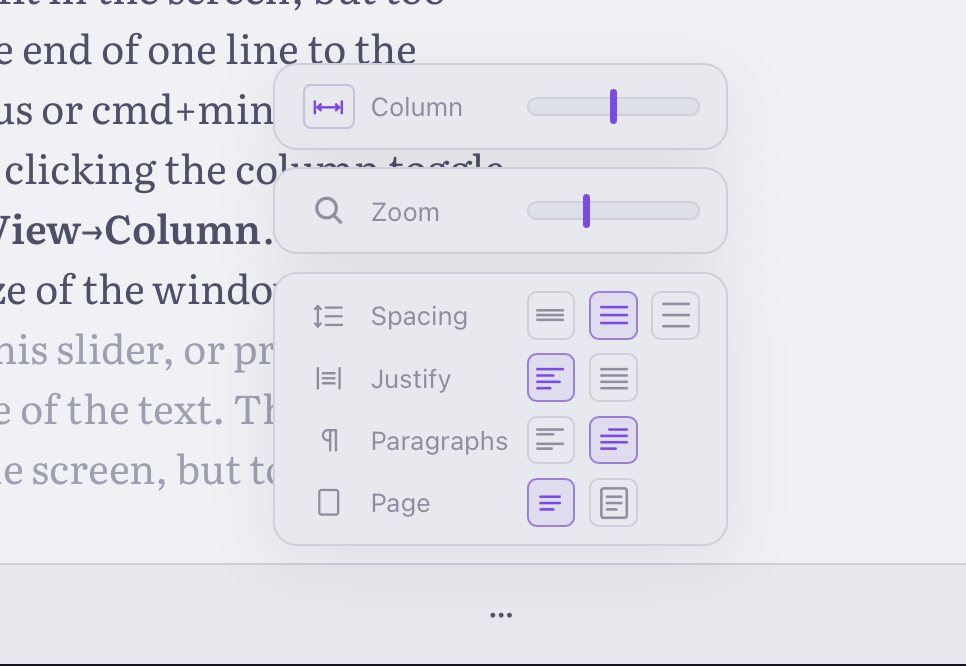
A description of each control follows, but feel free to experiment by clicking (there is nothing destructive here). Also note the shortcut keys in the tooltips (hover over the contols), which you might want to use in future if you like to tweak on the fly.
Column & Zoom
The first settings you might want to tune are column and zoom, which set how much text is visible on the screen at one time.
The top slider sets the width of the column. In other words: how much text is visible per line. The wider the column, the more text you can fit in the screen, but too wide and you can lose its place when scanning from the end of one line to the beginning of the next. Drag the slider or press ⌘+ or ⌘- until it feels right. You can also disable the column entirely by clicking the column icon in the slider, or via the menu with View→Column. With the column disabled, Ishmael will reflow the text to the size of the window.
Under the column slider is the zoom slider. Drag this slider, or press ⇧⌘+ or ⇧⌘- to change the size of the text. The trade-off this time is that small text fits more of your work on the screen, but too small and it gets harder to read.
Tweak these two settings and you should quickly find a combination that fits plenty of text on screen while being comfortable to read.
Spacing
Below the sliders are some controls you can use to further refine your writing surface. The first of those controls is labeled “Spacing” which adjusts the space between lines of text. The trade-off here is balancing words on the screen with ease of reading.
Here are the options:
Single Just a hint of space between lines to fit as much text as possible on-screen.
1.5 About half a line’s worth of space between lines.
Double A blank line between each line for a more airy writing experience.
Personally, I prefer 1.5 which is a good compromise.
Justify
The second row of icons on the writing surface panel is labelled “Justify” and is used to set the text justification.
Ragged right. Keeps the space between words constant. Consequently the right hand edge of the text is uneven.
Justify. Adjusts the space between words so that the last word aligns with the right edge.
Novels and books typically justify their text, which looks neat and is fine to read. However, editing text with justify on results in the entire line shifting as you type. For that reason, most people prefer to write with justify disabled.
Paragraphs
There are two options for how paragraphs are displayed in Ishmael.
Separate. Paragraphs have a blank line between them.
Indented. Second and subsequent paragraphs are indented with no other spacing between them. The classic novel format.
As always, this is a completely personal choice. Indented is more novel like, but I find the blank line between paragraphs to be clearer when I edit.
Pages
Ishmael can display a background behind the editor that looks like a sheet of paper, complete with edge and soft shadow. This virtual page is purely decorative and you have the option of disabling it.
Plain background. Removes the virtual page for a more minimal look.
Draw the page. Shows the virtual page.
I have no real preference on this one. Depends on my mood and the time of day.
Focus Modes
Ishmael can highlight the active paragraph and sentence while dimming the rest of the chapter. This simple feature can be a major productivity unlock as it frees you from the cognitive burden of keeping track of what you are working on.

You can enable focus mode from the Focus menu:
Focus→Disabled ⌘1 disables focus modes.
Focus→Paragraph ⌘2 highlights the current paragraph.
Focus→Sentence ⌘3 highlights the current sentence.
Focus→Paragraph & Sentence ⌘4 highlights the current paragraph and sentence.
Once you try this feature you may wonder how you did any work without it.
I like to switch modes according to what I’m working on at any given time. I prefer sentence focus ⌘3 or sentence & paragraph ⌘4 for new writing, but switch to paragraph ⌘2 for a more zoomed out perspective when I’m editing, and disable focus ⌘1 when I’m re-reading what I wrote.
You can also toggle focus mode from the footer by clicking the focus icon.
Typewriter Mode
There aren’t many writers who would advocate a return to the typewriter—a few perhaps. But typewriters had one interesting property that computers forgot about for decades. When you write with a typewriter, new text is inked in the same location relative to your point of view. You didn’t have to scan up or down the page to know where text would appear when you hit a key. Hardly a design choice, it was just easier to physically move the paper than the metal that did the printing.

Ishmael has a typewriter mode which emulates this property. Not out of misplaced nostalgia: by keeping the cursor in the same place relative to the “page” it eliminates the cognitive burden of keeping track of your cursor. You will never search for the cursor again because it will always be in the same narrow strip in the center of the screen.
Additionally, it makes editing much more comfortable. You always have exactly a screenful of context. Half above your edit point, half below.
Toggle typewriter mode via Write→Typewriter mode ⌘T or click the icon in the footer.
Changing the Font
You will find the other writing surface settings in the View menu.
You can select different font styles from View→Font. There are six fonts available, chosen to be the best of class for editing and writing. Here are the choices:
Courier New is a monospace serif font that resembles a class typewriter. Not the easier to read in my opinion—you might prefer Monaspace Xenon.
Inter is a clean sans-serif font with sharp lines that works particularly well at small font sizes.
Literata is a warm contemporary serif font designed for easy-reading, particularly in e-readers.
Quattro is a monospace derived font that relaxes the single width requirement but maintains an even spacing feel.
Monaspace Xenon is a monospace font (characters are the same width) designed for readability.
OpenDyslexic is designed to increase legibility for writers with dyslexia.
With the exception of perhaps OpenDyslexic, your font choice should reflect personal preferences. You can change it any time.
Setting the Theme
Also in the View menu is a sub-menu to set the (color) theme; View→Theme. Like macOS, Ishmael has two color themes: light and dark. The light theme has a light background and dark text, which looks the most paper-like. While the dark theme has a dark background and light text, which many find easier on the eye—especially for long writing sessions.
Ishmael will match your computer’s theme setting by default. You can also change it independently via View→Theme.
Zen Mode
Ishmael technically supports two writing surfaces. The first is your every day working surface, the second is zen mode.

Zen mode is an ultra-minimal writing surface which fills the screen (hiding all temptations like the dock). To activate zen mode, click the zen mode icon in the top right hand corner or press ⌃⌘Z. By default this will hide the title-bar and the footer, leaving barely more that your work and a cursor. Use zen mode when you really want to focus.
Every writing surface setting is duplicated in zen mode. Any setting you adjust in the View or Focus menus will be preserved next time you launch zen mode. You could configure zen to be even more minimal that the default settings or compromise by adding the footer back in. It is entirely up to you. Move the pointer up to the top of the screen to show the app’s menu and apply your zen mode modifications.
When you want to leave zen mode, hit ⌃⌘Z a second time, or move your pointer to the top of screen and press the green traffic light button.
10
Bookmarks
Ishmael can save your place in your book so you can quickly find that location in a later writing session.

Add a bookmark from the menu with Insert→Bookmark ⌘D. Ishmael will ask you for a label for this bookmark. Type in a brief description of this location or accept the suggested label and click the Add button.
You will find the bookmark in the Go menu. Selecting the bookmark will jump back to that location, no matter where you are in the book. Bookmarks are displayed within text like other letters and characters. You can even delete them with the cursor as if they were text, but they won’t appear in the reader or in exports.
Managing Bookmarks
The Go menu will show your ten most recent bookmarks. If you have more than that, or if you want to delete bookmarks you can open the bookmarks dialog from the menu with Go→Bookmarks… ⇧⌘D.
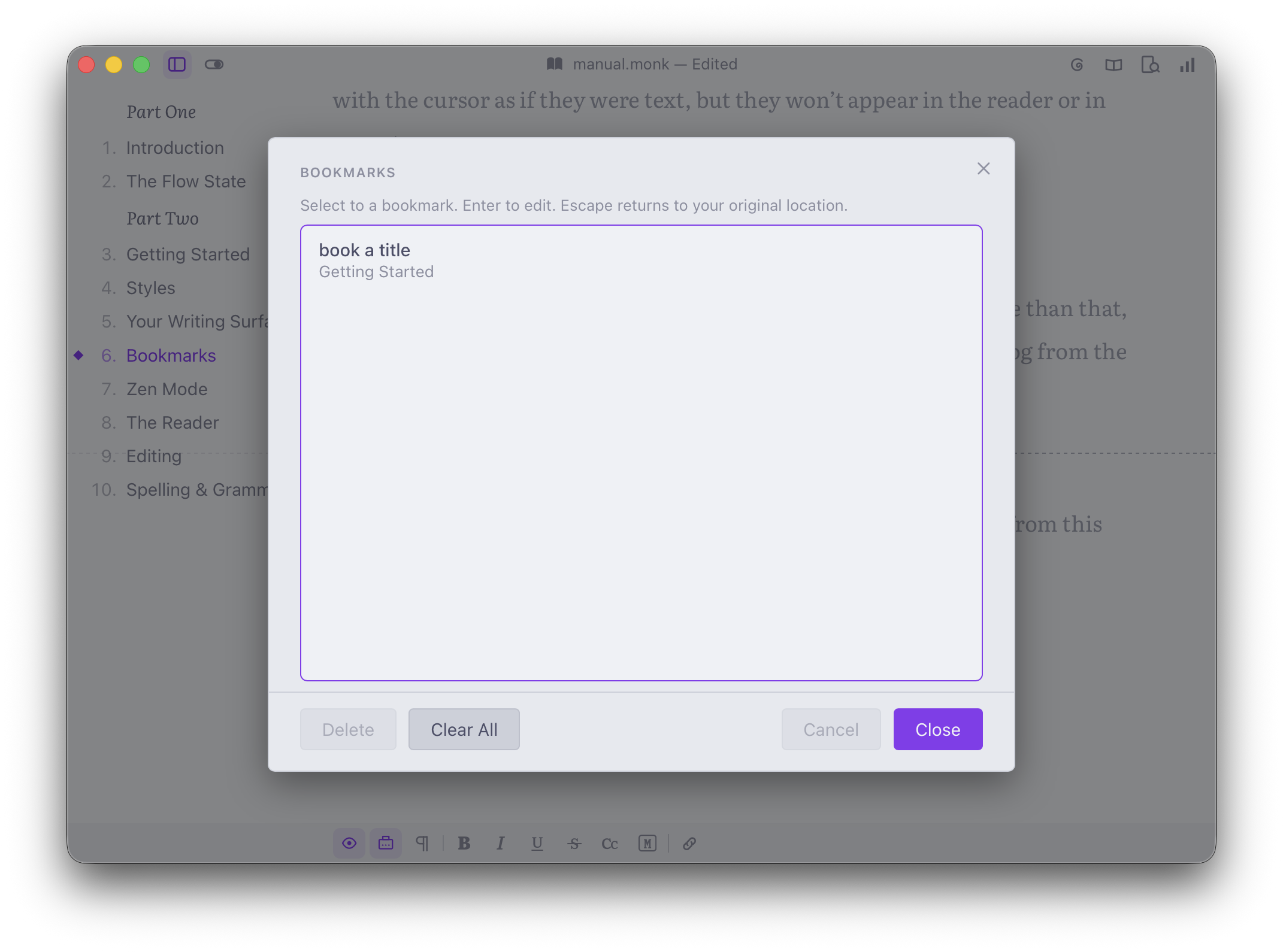
Click on of your bookmarks to jump straight there.
You can also delete an individual bookmark, or all bookmarks from this dialog.
11
Notes & Comments
Ishmael supports notes and comments which are two complimentary ways of adding text to your writing for your benefit only. Both are removed from the final export or print. Use them to leave reminders or to record thoughts for a future writing session.
Notes
A note is associated with a span of your text; a word, a sentence, or more. The note itself will appear the right margin of your writing. Add a note with Insert→Note ⌘' or by pressing the note icon (with text selected).

Enter the note into the floating note panel then hit ↵ to add the note or esc to cancel.
To edit a note, move the caret over the highlighted span of text and press cmd+’ again to focus the note in the margin. If you delete all the text in a note it will remove it completely. You can also remove a note by hovering over it with the pointer and hitting the close button which appears in the top right.
Comments
A comment is similar to a note but is inserted directly into your writing like any other paragraph. To add a comment select Insert→Comment ⇧⌘'.
Comments are styled differently that the rest of your writing and, like notes, will be removed from exports and print. In all other respects, comments are like any other paragraph in your writing. You can even turn a comment into a regular paragraph with the style menu (⌘L).
12
Spelling & Grammar
If your fingers hit precisely the key you intend every time and your mastery of spelling is beyond compare then you can skip this chapter. If you make typos now and again, this chapter is for you.
Spell checking is ubiquitous and yet typically implemented in such a way that it is hard to imagine the goal wasn’t to maximize disruption. Ishmael’s spell checking interface is designed—as always—to minimize distraction and remove the dependency on mouse and trackpad.
The Spellchecker
Ishmael will highlight spelling errors with a red squiggly line as-you-type. To correct an error tap ⌥ and Ishmael will display a menu underneath the misspelled word. Note that there is no need to click or position your cursor on the spelling error. Ishmael will assume the error you want to correct is the typo you just made, but if it highlights the wrong spelling mistake use ◀ ▶ keys to navigate between errors.
Navigate the spelling menu with ▲ ▼ ↵, or press any of the shortcut keys shown to the left of the options.
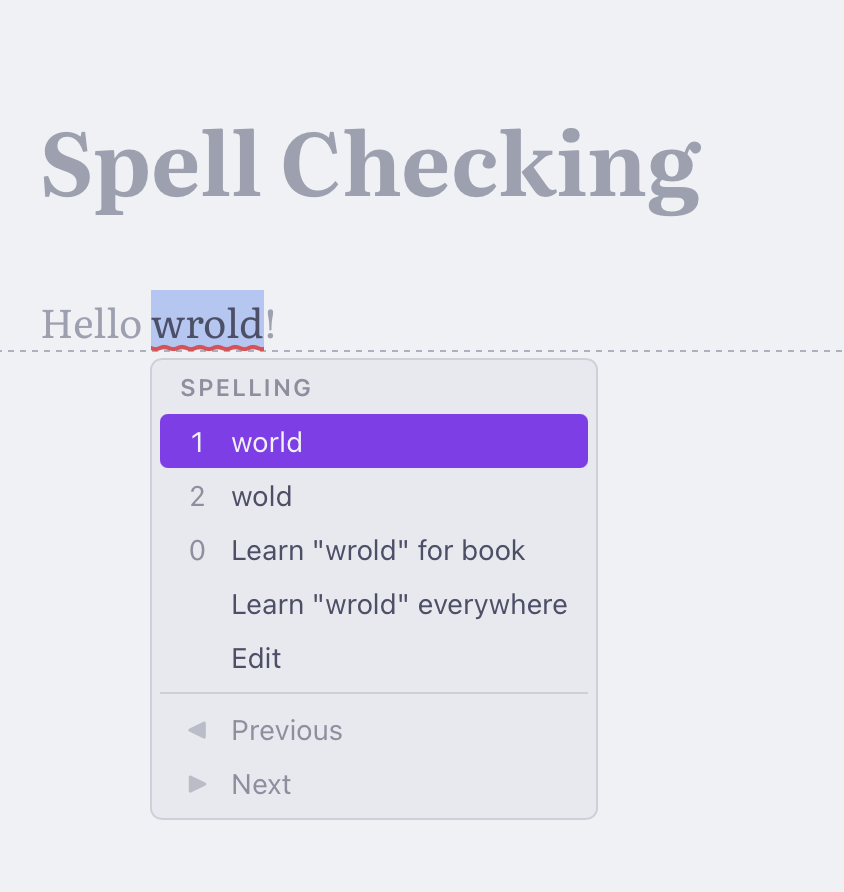
If you accept a suggestion it will change the text underneath.
You can also chose to learn the word so that Ishmael doesn’t flag that spelling in the future. You have two options for leaning words: just for your book or everywhere. Learning for the book means that if that spelling occurs in the book it won’t be flagged. If you learn everywhere then the spelling will be stored in the system dictionary, and the spelling will be remembered on other apps as well. Generally speaking, it is best to learn it for the book. Especially if it is for things like character names or terms that aren’t used outside of your story.
If Ishmael doesn’t offer any suggestions you would like to use, you can select Edit, which will drop the cursor at the end of the word. Or you can start typing to replace that word with a new spelling.
If you are happy with the suggestion or don’t want to correct anything, you can press ◀ and ▶ to move through spelling errors in the chapter. Press esc at any point to return to the point where you first started the spell checking.
No Distractions
The red squiggly line under a spelling error is an instantly recognizable convention, but a quite distracting one. Its very purpose to draw your eye to that word. If you find yourself compelled to edit a typo as soon as you see it you are not alone.
Ishmael offers two options to check spelling without premature self-editing (a flow state killer). You can disable spelling error highlights by unchecking Write→Highlight Spelling. This removes the red squiggly lines, but you can still tap ⌥ at any time to display and correct spelling as before. This means you can defer spell checking to natural breaks in your writing rhythm.
A less strict alternative is to check Focus→Hide Spelling on Focus. This will hide spelling errors when you are in any of the sentence or paragraph focus modes, but show them when focus is disabled. That way you can use focus modes to allow a temporary amnesty on typos.
Book Dictionary
Ishmael stores learned words in the .ishmael file so that they won’t be flagged in future sessions. You can review learned words for your book from the Book→Dictionary… dialog.
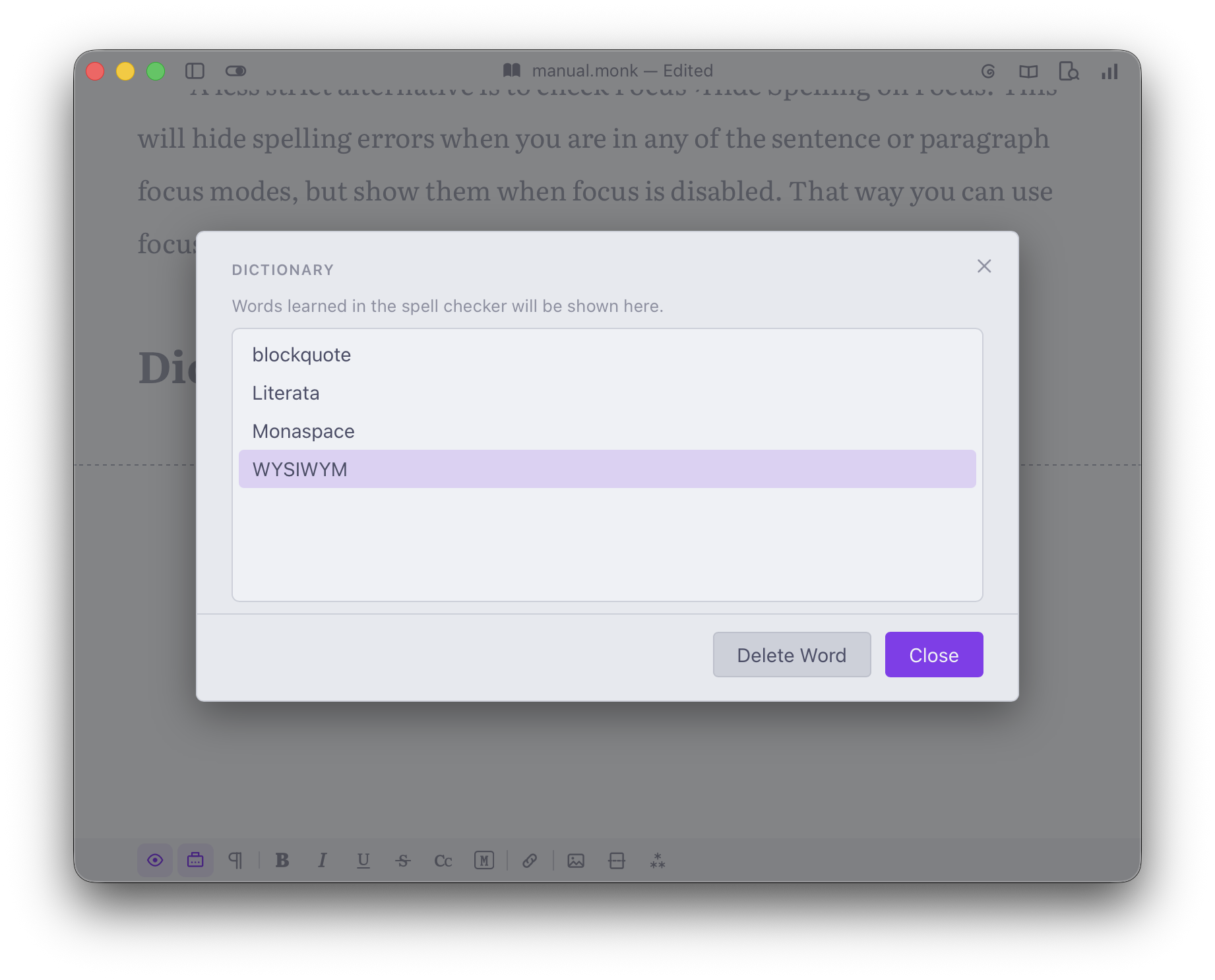
You can unlearn individual words that you may have accidentally learned here, or unlearn all to clear the dictionary entirely.
13
Chapters
An Ishmael file can contain an entire book, which means that it stores all your chapters in the same file while allowing them to be treated as individual parts while editing. There is no need to keep your entire manuscript in a single document which becomes grossly unwieldily, or litter your drive with multiple chapter documents which are nightmare to organize.
To create a new chapter, select Chapter→New ⌘N. You will see a blank chapter where you can enter a title and start writing.
The Chapter Pane
Select View→Chapters ⌘/ to show the chapter pane which lists all your chapters on the left edge of the screen. You can navigate between your chapters by clicking the chapter title or pressing ⌃] or ⌃[. Each chapter has its own edit point, so you can switch between them without losing your place. When you save your book, all your chapters will be saved with it.
The chapter pane is also where you can change the order of your chapters. It’s not uncommon to need to re-arrange chapters to define the narrative. You can do this with ⌃⇧[ and ⌃⇧] which moves the current chapter up or down the list, or you can click a chapter title and drag it to a new position. Ishmael will keep track of the chapter numbers automatically, so no need to edit titles when you move chapters.
You can copy and delete chapters via Chapter→Copy and Chapter→Delete. Note that these actions and changing the order of chapters are stored on the undo stack so you can undo ⌘Z any changes to the chapters if you make a mistake.
Sections
The main body of a book will be in chapters, but there are other pages in a book which are not technically chapters, such as dedication, foreword, epilogue etc. These additional pages are known as either front-matter or back-matter depending on wether they appear before the chapters (front-matter) or after the last chapter (back-matter). You can create these special pages with Chapter→New Section and selecting one of the section types from the sub-menu.
The section type mainly matters for numbering. Chapters numbered consecutively start at 1. Front-matter is numbered with roman numerals, and back-matter doesn’t have numbers. Ishmael understands this and applies the numbering for you.
Chapter Settings
Each chapter or section has settings panel which can be shown and edited selecting View→Chapter Settings ⇧⌘,.
Here’s the controls you can expect from chapter settings:
Section A select to change the section type.
Lock A switch to make the chapter or section read only (preventing edits).
Exclude A switch to exclude the section from exports. If a chapter is a work in progress, or if you want to use it to keep notes, you can enable this switch so it isn’t considered part of the book.
Parts
Some books—although far from all—organize themselves in to parts; Part One, Part Two etc. You can create parts in Ishmael by adding a chapter with a section type of “Part”.
Consider the part section as a page which introduces a group of chapters forming the part. If you want to use parts, add a Part prior to the first chapter with the title “Part One” (or however you wish to number them) and an optional subtitle such as “In the beginning”. Add another part section prior to the initial chapter of that part. The title would be “Part Two” with another subtitle to tease the next chapters. Ishmael knows not to number part sections so you it won’t reserve a chapter number and the chapter before and after the part section will be consecutive. In all other respects a chapter is a regular section.
14
The Reader
When others read your work, they will likely read off a printed page or an e-reader such as an Amazon Kindle. These are quite different media to the scrolling window of text you will be writing with.
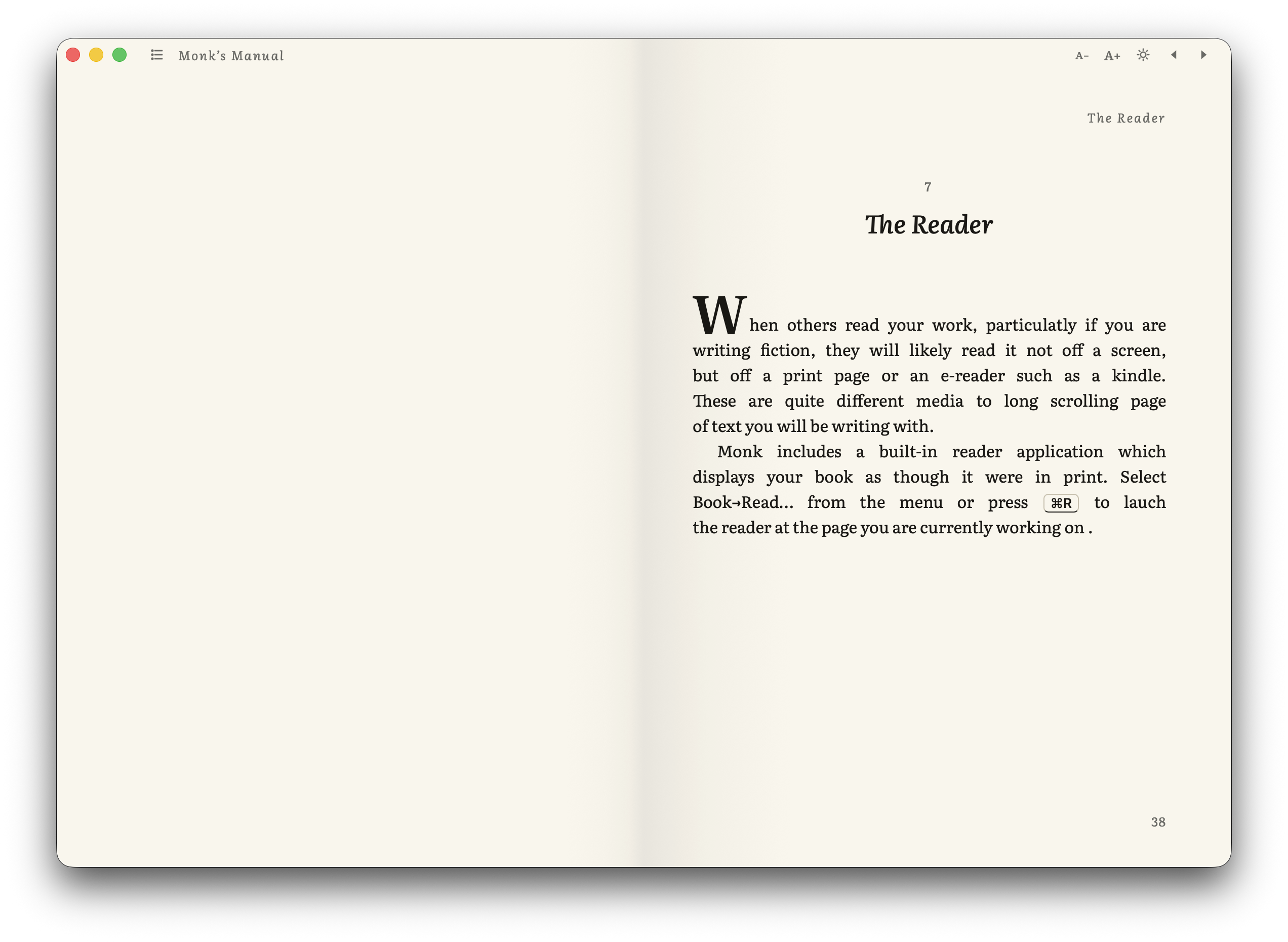
Ishmael includes a built-in reader application which displays your book as though it were already in print. Select Book→Read… ⌘R to launch the reader at the page you are currently working on.
The Reader application is simple and intuitive. Press ▶ and ◀ to navigate the pages. There is an icon to list the chapters in the title bar on the left. On the right there are buttons to change the size of the text, switch light and dark themes, and navigate pages. Press esc or close the window to exit.
When you come to read your own work back, you may find it more natural to read in the Reader than the editor.
15
Exporting
Ishmael files are meant for editing. You can exchange them with other Ishmael users, but if you want to share your work with others—wether it is a publisher, editor, or the general public—you will need to export to a standard format.
Ishmael was designed with export in mind. When you are ready, it can take what you have written and produce other file-types. There are typically switches and settings for each format you can use to tune the output, but generally speaking the defaults will produce just what you need.
Export Dialog
Open the export dialog with File→Export… ⌘D
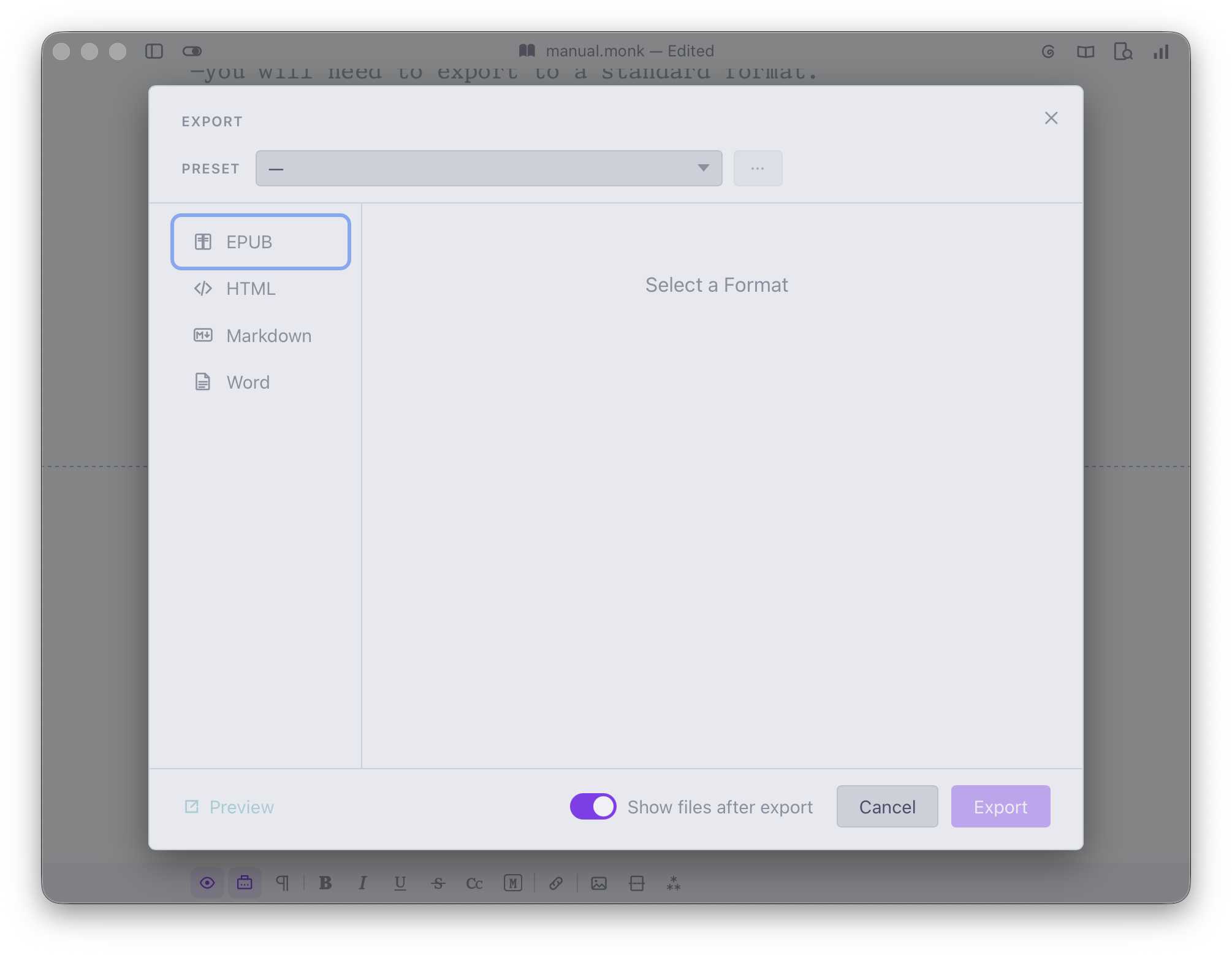
On the left you will see the supported export formats. Clicking on one of those formats will show related controls, which you may tune to your requirements or accept the defaults.
Scroll down to the bottom of the format options to select the location of your export. Some formats write multiple files, so you may need to select a folder or a file.
Click the Export button to write the files to your disk. You can also click the “Preview” link which will export to a temporary location so you can check the results before writing the files proper.
To repeat an export with the last settings used select File→Export Last ⇧⌘E.
Presets
You’ll find preset controls at the top of the Export dialog. These allow you to save settings for Export if you use them frequently. There are a number of built in presets supplied with Ishmael.
Shunn Standard A .docx file in a format typically expected by a publisher.
Shunn Standard Modern A variation of the Shunn Standard using the Times New Roman font rather than Courier New.
Shunn Short Story A Shunn Standard for Short Stories.
See the … button next to the preset select to add your own presets.
EPUB
The EPUB format is a standard format for e-readers. Books are contained in a single file, and they can be read on a Kindle or any e-reader device. On Mac you can open .epub files in the Apple Books app.
There are a number of settings for EPUB you can use to tune how your book looks: text style, chapter headings, scene breaks, and more. The defaults are chosen to produce good results for most books, but feel free to customize the book to your preferences.
HTML
HTML (HyperText Markup Language) is the language of the web. You can export your book as HTML then upload it to share your book with the public. This does require a little technical knowledge outside of the scope of this manual.
Before exporting, pick a template, which defines how your book will display in the browser. The template choices are as follows:
Basic No-frills default fonts and basic formatting with text and links for navigation.
Classic Reader A book reader with a column for chapters on the left, and more book-like formatting.
Ishmael Light A light theme with Literata font and navigation links.
Ishmael Dark A dark theme with Literata font and navigation links.
Ishmael Reader A web based version of Ishmael’s Reader, with the same pagination and controls.
Markdown
Markdown is a plain text format with special syntax for formatting. The most common reason to export to Markdown is for compatibility with static site generators and other publishing platforms which expect Markdown.
You can configure how you want Ishmael to name your chapter files, and if you want to write a separate index file.
WORD
At the time of writing, Microsoft Word is the most commonly used format in the publishing industry—and that isn’t likely to change any time soon. If you are sending your manuscript to a publisher or editor, you will likely need to send them it in .docx format.
Publishers have particular requirements regarding the format of the Word file you send them. Fortunately the differences are often minor and a variation of a Shunn Manuscript preset supplied with Ishmael. If you do need to tune the Word export for a particular publisher, be sure to save a preset for next time.
16
Help & Support
For technical support, see the support page or email ishmael@textualize.io.
Discord Server
Ishmael has a Discord server (a live chat service), where you can chat with Will McGugan and other members of the Ishmael community.
Afterword
As I alluded to in the introduction, I am not a writer. At least not a writer of fiction. I have produced plenty of technical writing and once published a book—an instructional manual how to write video games. I’ve also written short stories for my own amusement. But nothing that would qualify me as being an author of fiction. At least, not yet. I’m certain that will change, and one of the novel ideas that race through my head after a cup of coffee will make it to a kindle or bookstore near you. Until then I am sticking with the moniker of software developer—or programmer.
Fortunately as much as I am unqualified to give writing advice, I am at least as much qualified to create an app such as Ishmael. Being a software developer gives me a perspective on writing (with a computer) that writers themselves may lack.
You see writing computer code is at some fundamental level a lot like writing fiction. Both involve typing and then re-arranging what we type. Text is the bread and butter of both trades such that an alien watching a human write computer code next to a human writing a novel would conclude that both were engaged in the same activity.
The software used to write computer code is a specialized word processor than understands the semantics of the (computer) language we write in. Contrast that with writer’s tools which see your text in terms of lines and characters.
We don’t read and write lines and characters. That is the language of the computer. The fundamental unit of language is the word. Then sentence, paragraph, and scene. Which is why many of the off script features of Ishmael focus on those atomic units.
I’m hoping that Ishmael lowers barriers to writing. I would like Ishmael to help writers to write more, and non-writers to become writers. And both to take more pleasure in the experience.